
How to Check Whether an Online File Converter Uploads Your Files
· 4 min read
Contents
Online tools for converting images or merging PDFs are handy, but before you drop in an ID scan or a contract, you might wonder where that file is going. Many tools say “we don’t upload your files” — and there are ways you can check that yourself. This post walks through them and shares what we found when we checked our own File Tools.
Upload-based vs. in-browser tools
Online file tools work in one of two ways:
- Upload-based: your file is sent to a server, converted there, and the result is sent back. The file passes through the operator’s servers, so you have to trust how they store and delete it.
- In-browser: you only download the page and its processing code (JavaScript and WebAssembly); the conversion happens inside your browser and the file never leaves your device.
Both look the same on screen — choose a file, convert, download — so you can’t tell them apart just by looking.
Method 1: Watch the Network tab (desktop)
Every request your browser makes shows up in its developer tools. These steps are for Chrome or Edge.
- Open the converter page.
- Press F12 (⌥⌘I on a Mac) and select the Network tab.
- Clear the list (the 🚫 button), then add your file and convert it.
- Look at the new requests.
What to look for:
- POST or PUT in the Method column. These are the usual ways to send data to a server. GET requests download something.
- A POST request roughly the size of your file. Click it and open the Payload tab to see what was sent. If you see your file name or data of a similar size, it was uploaded.
- Requests starting with
blob:. These are temporary file addresses created inside your browser, used for previews and downloads. They don’t leave your device.
Sites with analytics or ads may show small POST requests. Compare the request size with your file size to tell them apart.
Method 2: Try it offline (works on phones too)
If developer tools aren’t an option, there’s a simpler test:
- Open the tool and convert a sample file once, so the processing code is downloaded.
- Turn on airplane mode or switch off Wi-Fi.
- Convert another file with the same tool.
If it still works without internet, it doesn’t depend on a server. An upload-based tool can’t convert anything in this state. Don’t skip step 1 — even an in-browser tool may stall if it hasn’t downloaded its processing code yet.
What we found
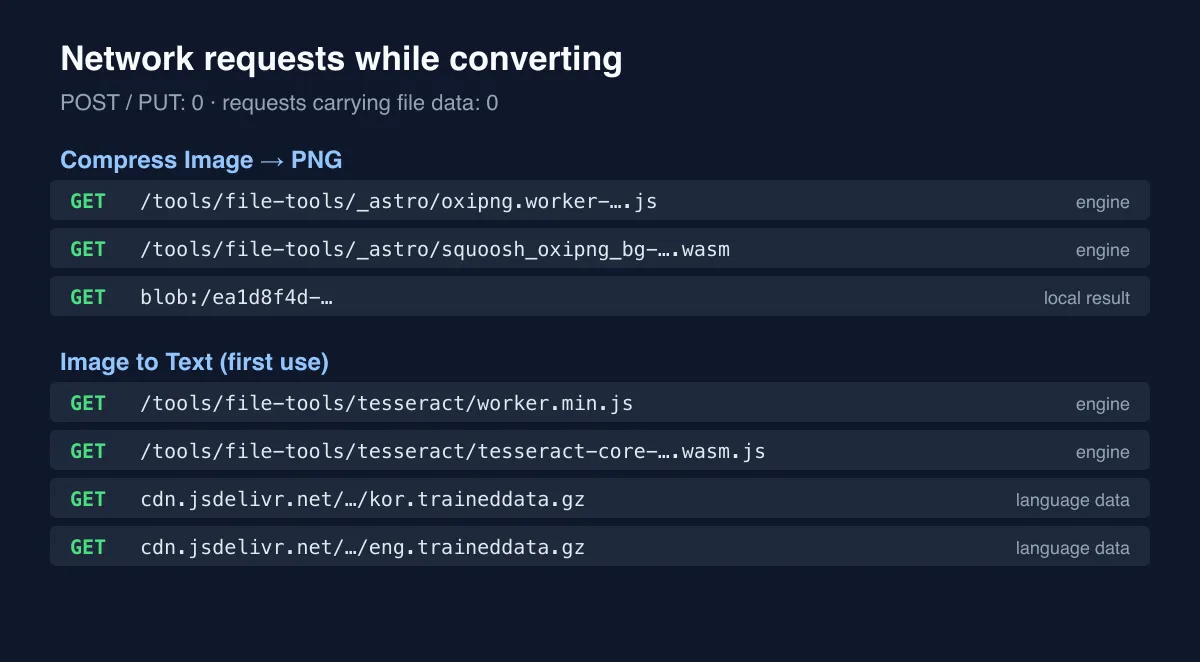
We recorded every request the browser made during four File Tools tasks, from the moment the page had finished loading until the result appeared.
| Task | Requests | POST/PUT | Requests with file data | What was fetched |
|---|---|---|---|---|
| Compress Image (save as WebP) | 2 | 0 | 0 | Only blob: result previews |
| Compress Image (PNG optimization) | 3 | 0 | 0 | PNG optimizer engine (JavaScript, WebAssembly), blob: |
| Merge PDF (two PDFs) | 2 | 0 | 0 | PDF processing code |
| Image to Text (Korean, first use) | 6 | 0 | 0 | OCR engine, Korean and English data from jsDelivr |
In all four cases there were zero POST/PUT requests and zero requests carrying file data. The only traffic was GET requests downloading processing engines and recognition data, plus in-browser blob: addresses. Image to Text downloads language data from the public jsDelivr CDN the first time you use it; those requests contain only the language file name, never your image.
We also tried it offline. Saving as WebP worked right after disconnecting. PNG optimization stalled before its engine had been downloaded, but after one run to fetch the engine, it worked without internet too — which is why Method 2 says to try the tool once first.
The requests were recorded with automated Chrome (Playwright); the experiment script is stored alongside this post in our repository.
Other clues
The two methods above are the reliable way to tell, but these can also hint at how a tool works:
- An upload progress bar or messages like “processing on our server” usually mean it’s upload-based.
- Unusually small file size limits or daily usage caps often exist because of server costs.
- A privacy policy saying “uploaded files are deleted after N hours” means files are stored on a server.
Upload-based tools aren’t automatically bad — some jobs, like converting very large videos, are hard to do in a browser. But for sensitive files, it’s worth knowing which kind you’re using.
The bottom line
You can verify a “we don’t upload your files” claim yourself with the Network tab or an offline test. Try it on Kola Tools’ File Tools too. We explained how File Tools works in the browser in File Tools without uploads.