
File Tools Without Uploads: Convert Images and PDFs in Your Browser
· 4 min read
Contents
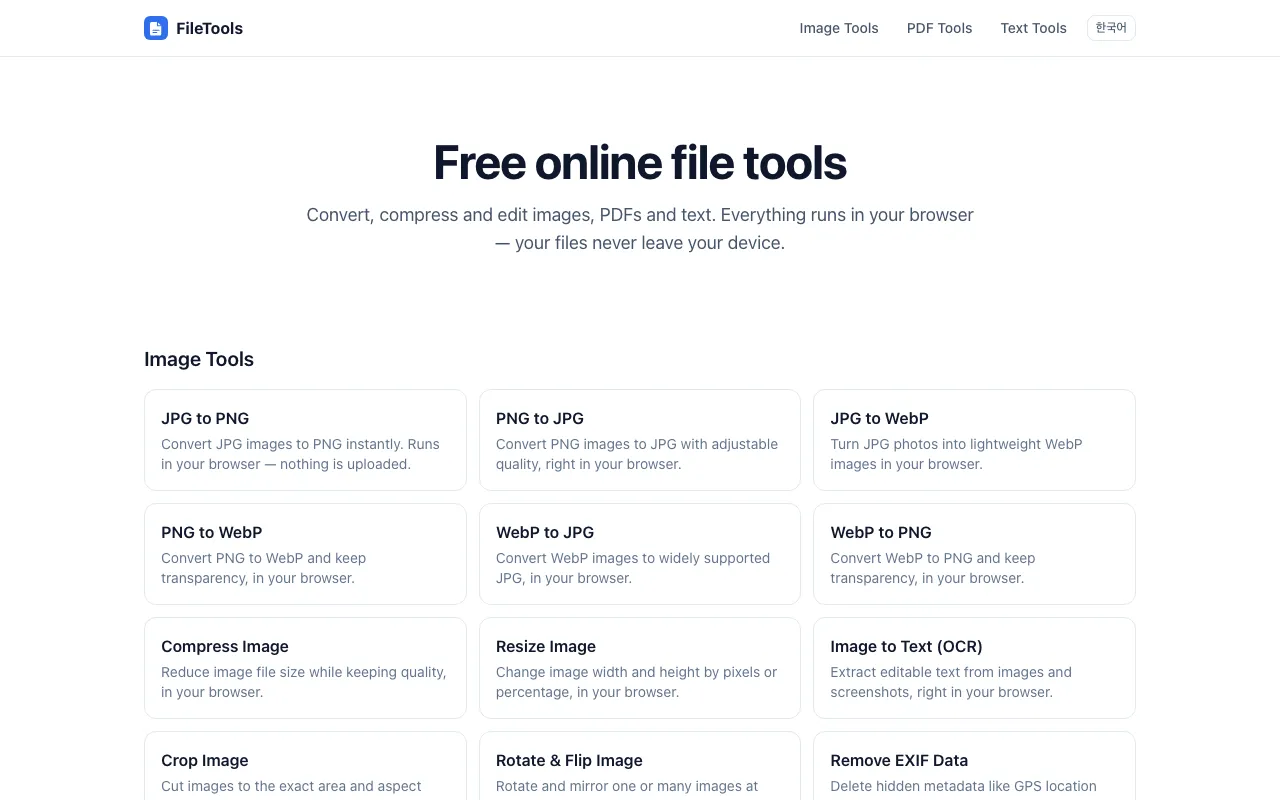
Our second post introduces File Tools: 27 everyday file tasks — converting and compressing images, merging and splitting PDFs, pulling text out of screenshots (OCR) and more — all in one place. Here is why we built them to work without uploads, and how the most popular ones actually work, with real screenshots.
Why we built it
Shrinking a photo or combining two PDFs is a common chore, but many online tools you find through search upload your file to a server to process it. For an ID scan, a contract or family photos, a note saying “uploaded files are deleted after a few hours” isn’t very reassuring.
Modern browsers can process images (Canvas), run high-performance code (WebAssembly) and do heavy work in the background (Web Workers). So we built File Tools on a few principles:
- Your files never leave your device. Every conversion and edit happens inside your browser, and results are saved straight from your device.
- No sign-up, no install, no watermarks — open a page and use it.
- One task, one page. Search for “jpg to png” and you land on a page that does exactly that.
- Every tool is available in English and Korean.
What’s included
| Category | Tools |
|---|---|
| Image (14) | JPG/PNG/WebP conversions (6), compress, resize, crop, rotate and flip, image to text (OCR), remove EXIF and location data, SVG to PNG, favicon generator |
| PDF (9) | Merge, split, PDF to JPG/PNG, JPG/PNG to PDF, rotate, delete pages, reorder pages |
| Text (4) | Word counter, case converter, JSON formatter, Base64 encode/decode |
Let’s look at three of the most used tools.
Compress images
Compress Image shrinks JPG, PNG, WebP, GIF and BMP images, several at a time. Pick an output format (same as original, JPG, WebP or PNG), a quality level and an optional maximum size, then drop in your files.
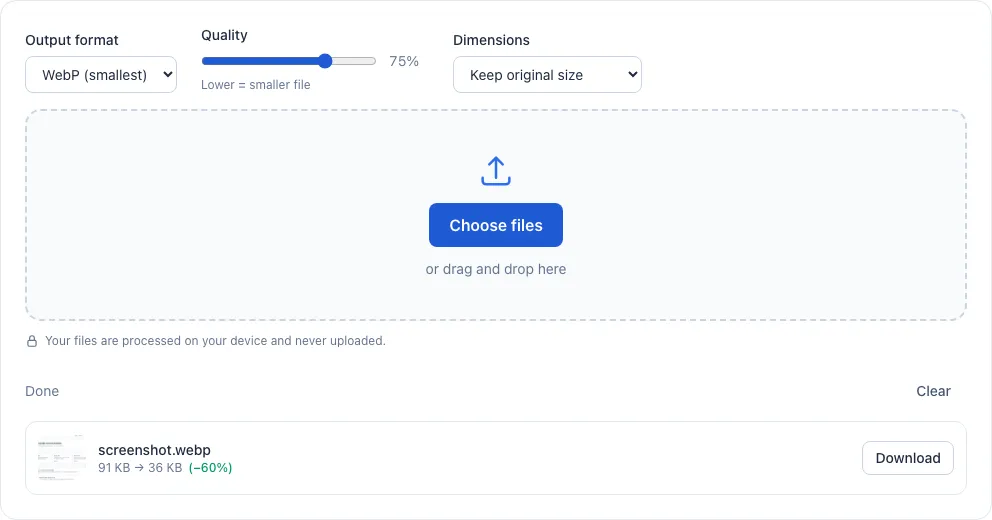
In the example above, a 91 KB PNG screenshot saved as WebP at 75% quality came out at 36 KB (−60%).
- JPG and WebP are re-encoded with the browser’s own image encoder at the quality you choose. If your browser can’t save WebP, a WebAssembly WebP encoder takes over.
- When saving as PNG, a lossless optimizer (OxiPNG, compiled to WebAssembly) runs in a Web Worker, shrinking the file without losing quality and without freezing the page. If optimizing doesn’t make it smaller, the unoptimized PNG is used.
Merge PDFs
Merge PDF combines several PDFs into one. Each file shows its page count and size; drag them (or use the arrow buttons) into the order you want and press “Merge PDF”.
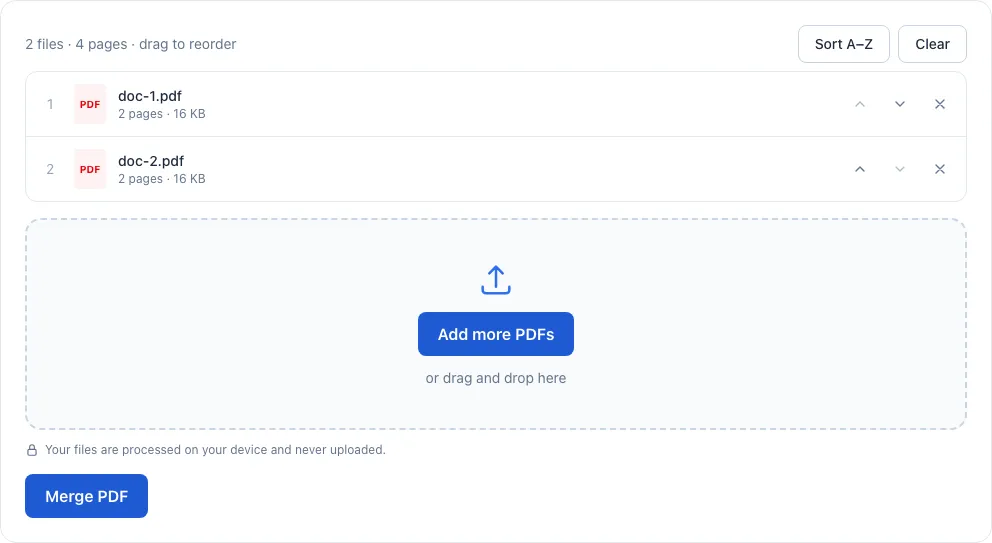
Merging uses a pure-JavaScript PDF library (pdf-lib) that copies pages into a new document, so text and images move across untouched instead of being redrawn. Going the other way, the PDF to JPG/PNG tools render each page with PDF.js, the PDF engine used in browsers, and those engine files are served by Kola Tools itself rather than a third-party server.
Extract text from images (OCR)
Image to Text turns text in photos and screenshots into text you can copy. Choose the text language, then drop in an image — or paste a screenshot straight from your clipboard with Ctrl/⌘+V.
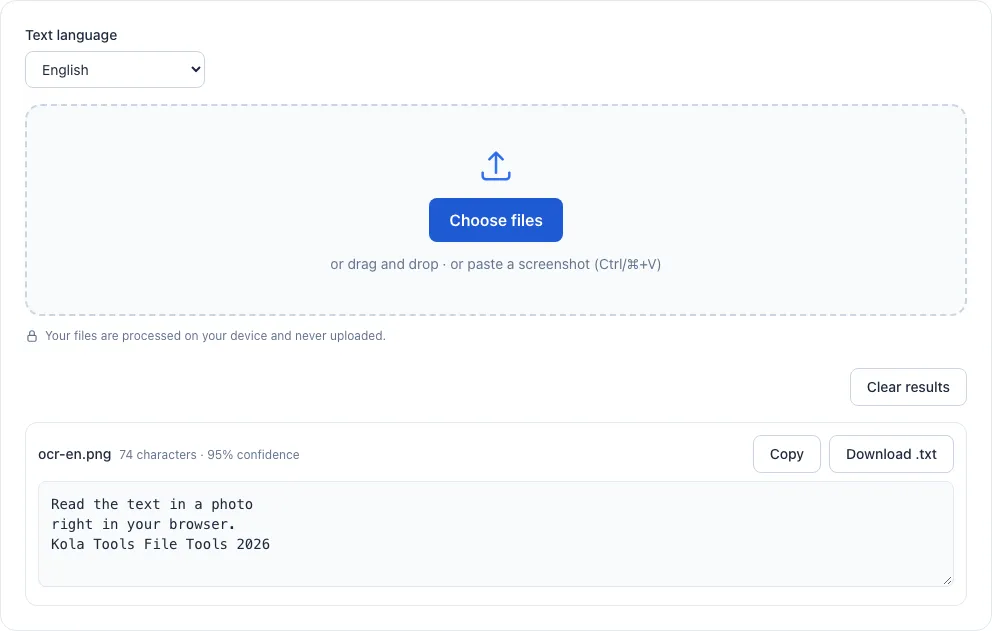
Recognition uses tesseract.js, a WebAssembly port of the open-source Tesseract OCR engine. You can choose from 20 languages, including Korean, Japanese and Chinese; when you pick a language other than English, English is recognized as well, since many documents mix in numbers and Latin text.
One thing worth knowing: the recognition data for each language is downloaded once, the first time you use it, from the public jsDelivr CDN. That request contains only the language file name — never your image or the recognized text. The recognition itself runs entirely in your browser.
Are my files really not uploaded?
Every tool says “Your files are processed on your device and never uploaded”, and the architecture backs that up: there is no server to receive files. File Tools is deployed as static pages only — once the page and its processing engines (JavaScript and WebAssembly files) have loaded, your browser does all the work.
If you want to check for yourself, open your browser’s developer tools on the Network tab and convert a file. You won’t see any request carrying your file’s contents — only requests that download engine files for features you use for the first time, like the OCR language data mentioned above.
Large files can take a while depending on your device, and phones with little memory may struggle with very large PDFs or very high-resolution images.
Try it yourself
Next time you need to shrink a photo, combine PDFs or copy text from a screenshot, try File Tools — no uploads required. Our previous post introduced the Financial Calculators, and we’ll keep introducing the rest of Kola Tools one tool at a time.