
JPG vs PNG vs WebP: Which Image Format Should You Use?
· 3 min read
Contents
Saving or uploading an image, it’s easy to wonder whether to pick JPG, PNG or WebP. Each format is good at different things, and the wrong choice can make a file several times larger, blur text, or fill a transparent background with white. Below we compare the three using file sizes we actually measured and zoomed-in comparisons, then recommend a format for each situation.
The differences at a glance
| Format | Compression | Transparency | Best for | Compatibility |
|---|---|---|---|---|
| JPG | Lossy | No | Photos | Practically every device and app |
| PNG | Lossless | Yes | Screenshots, text, logos, graphics | Practically every device and app |
| WebP | Lossy or lossless | Yes | Almost any image on a website | All modern browsers; some apps and services don’t accept it |
- Lossy compression throws away detail your eyes are less likely to notice. The lower the quality setting, the more it discards and the smaller the file.
- Lossless compression keeps every original pixel and only shrinks the file. Text and lines stay crisp, but photos end up large.
What we measured
Using Compress Image in File Tools, we saved the same images with only the format and quality changed, and compared file sizes. Every original is a PNG.
| Original (PNG) | Optimized PNG | JPG 90% | JPG 75% | WebP 90% | WebP 75% |
|---|---|---|---|---|---|
| Screenshot (1280×800, 91 KB) | 67 KB | 97 KB | 68 KB | 54 KB | 36 KB |
| Simple illustration (1200×800, 36 KB) | 17 KB | 31 KB | 19 KB | 14 KB | 9.4 KB |
| Logo with transparency (512×512, 14 KB) | 9.8 KB | 14 KB | 10 KB | 7.9 KB | 6.0 KB |
- WebP was the smallest every time — at 75% quality, about half to 60% the size of JPG.
- Screenshots and illustrations shrink a lot with lossless PNG optimization alone, because they have large areas of identical color. For the screenshot, JPG at 90% was actually bigger than the original PNG.
- These are screenshots and simple graphics, not camera photos. In photos, nearly every pixel differs slightly, so a lossless PNG is often several times larger than a JPG or WebP.
How much does text blur?
Here is the text from the same screenshot, zoomed in 8×.

The PNG is identical to the original, while JPG and WebP show slightly smeared letter edges and faint smudges in the white background. At normal size you’d barely notice — but if you’ll zoom into screenshots full of small text, such as documents or code, PNG is the safe choice.
Transparency disappears in JPG
We placed a logo with transparent corners on a dark background.
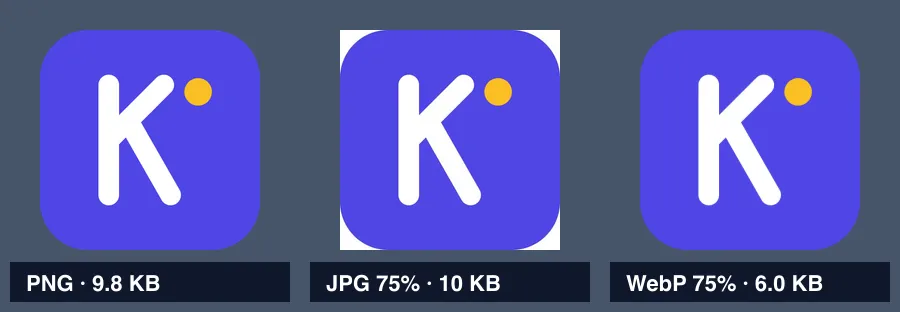
JPG can’t store transparency, so converting fills transparent areas with white. Save logos, icons and cut-out images as PNG or WebP.
Which format for which job
| Situation | Use | Why |
|---|---|---|
| Sending phone photos by message or email | JPG | Opens everywhere and keeps photos small |
| Images on a website, blog or online store | WebP | Smallest at the same quality, so pages load faster |
| Screenshots of documents or code | PNG | Text stays sharp (high-quality WebP also works for the web) |
| Logos, icons and cut-out images | PNG or WebP | Keeps the transparent background |
| Uploading somewhere that rejects WebP | JPG or PNG | The widest compatibility |
| Keeping an original you’ll edit again | Original format | Repeated lossy saves keep lowering quality |
Good to know
- Converting a JPG to PNG doesn’t restore quality. Discarded detail is gone for good; you only get a bigger file.
- Re-saving a JPG again and again slowly lowers quality. Keep an original while editing and save to JPG once at the end.
- A quality of 75–85% is usually plenty — files get much smaller with little visible difference.
- If a WebP file won’t open, convert it with WebP to JPG or WebP to PNG.
- HEIC, the iPhone’s default, stores photos compactly but isn’t supported in many places, so converting to JPG before sharing is the safe bet.
How to convert
File Tools converts and compresses images right in your browser — nothing is uploaded.
- JPG to WebP, PNG to WebP: lighter files for the web
- PNG to JPG: when you need compatibility (transparent areas turn white)
- JPG to PNG: for transparency work or lossless editing
- Compress Image: set format, quality and size for many images at once
In short: JPG for photos, PNG when you need sharpness or transparency, WebP for the web. That covers most situations.