
How to Check and Remove Location Data (EXIF) from Photos Before Sharing
· 4 min read
Contents
A photo file from your phone holds more than the picture. It often records where, when and with what device the photo was taken. Post a photo of something you’re selling, taken at home, and you may be sharing your home’s location too. This guide shows how to check for that hidden information (EXIF) and how to remove it before you share.
What’s inside a photo’s EXIF data?
EXIF is information that cameras and phones save inside the image file. You don’t see it when you look at the picture, but anyone who has the file can read it with free software.
- GPS coordinates: if location saving is on in your camera, the latitude and longitude of where you took the photo — often precise enough to pinpoint a building.
- Date and time the photo was taken
- Device details: phone or camera make and model, and lens
- Camera settings: exposure, ISO, focal length
- Editing software, and sometimes an owner name or copyright notice
When should you remove it?
Sending a photo file means sending everything inside it. It’s worth stripping metadata first when you:
- Post photos taken at home in a marketplace listing
- Share photos on forums, blogs or community sites
- Send the file directly to people you don’t know well — by email, cloud sharing links, or a messaging app’s “send as file/original” option
Many large social networks remove location data from public photos, but it varies by service and by how the photo is sent, and sometimes the original file goes through unchanged. Rather than assuming it’ll be handled for you, check before you send.
How to check a photo for location data
- iPhone: open the photo in the Photos app and swipe up. If a location was saved, you’ll see a map and the place it was taken.
- Android: open the photo in your gallery app or Google Photos and swipe up or tap the info (ⓘ) button to see location and device details. The layout differs slightly between apps.
- Windows: right-click the file and open Properties > Details. If the GPS section shows latitude and longitude, the location was saved.
- Mac: open the photo in Preview and choose Tools > Show Inspector to see EXIF and GPS information.
Stop saving location in new photos
- iPhone: go to Settings > Privacy & Security > Location Services > Camera and choose Never. For photos you’ve already taken, tap Options at the top of the share sheet and turn off Location before sending.
- Android: turn off Location tags or Save location in your camera app’s settings. The exact name varies by manufacturer and camera app.
Turning off location still leaves the date and device details in new photos — and photos you’ve already taken keep their location.
Remove it from photos you already have
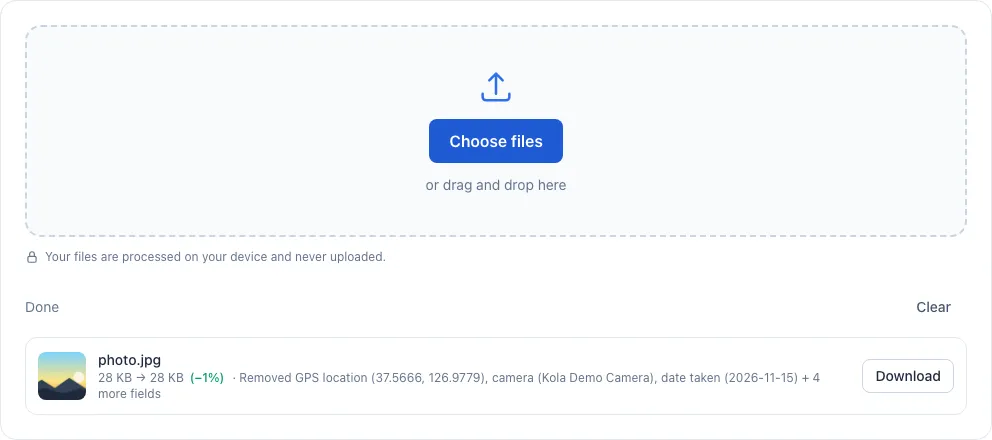
Drop your photos into Remove EXIF Data in File Tools. It shows what each photo contained and what was removed, and gives you a clean copy to download. It works with JPG, PNG and WebP, several files at a time.
The example above uses a demo photo we created for this post, with coordinates near Seoul City Hall and a made-up camera name. When we read the downloaded copy back, no EXIF data was left, and the image data was byte-for-byte identical to the original.
That’s because the tool doesn’t re-save the photo; it cuts out only the metadata from the file, so there’s no quality loss. If a photo needs its rotation flag to display upright, that single value is kept — location, date and device details are all removed. Your photos are processed in your browser and never uploaded.
HEIC, the iPhone’s default format, isn’t supported. iPhones often convert photos to JPG when you share them, so export as JPG first — or choose Most Compatible under Settings > Camera > Formats to save future photos as JPG.
Other ways to do it
- Windows: Properties > Details has a Remove Properties and Personal Information link that can make a cleaned copy.
- Mac Preview: the Inspector’s GPS tab lets you remove location information.
- Screenshots: a screenshot of a photo doesn’t carry the original’s EXIF, but you lose quality and the size changes to your screen resolution.
For cleaning many photos at once without any quality loss, the EXIF remover above is the easiest option.
The habit that’s enough
A quick check before you send is all it takes. If a photo has a saved location, clean it with Remove EXIF Data before sharing. We covered the rest of File Tools in File Tools without uploads.